

運用保守の現場では、Pythonで作成された運用スクリプトを使って、ログ収集、レポート作成、バックアップなどを自動化していることがあります。
しかし、次のような状態になっていると、スクリプトを修正するたびに不安が残ります。
- バージョン管理をしていない
- 本番環境上で直接スクリプトを書き換えている
- 単体テストをせず、簡単な結合テストだけで済ませている
- 変更後に、既存の処理が壊れていないか確認しづらい
このような状態を改善する第一歩として、今回の記事ではPythonのテストツールであるpytestを使った単体テストの始め方を紹介します。
この記事では、pytestを初めて触る人向けに、Windows環境で仮想環境を作成し、簡単なPythonスクリプトに対してテストを実行するところまで扱います。
pytestとは
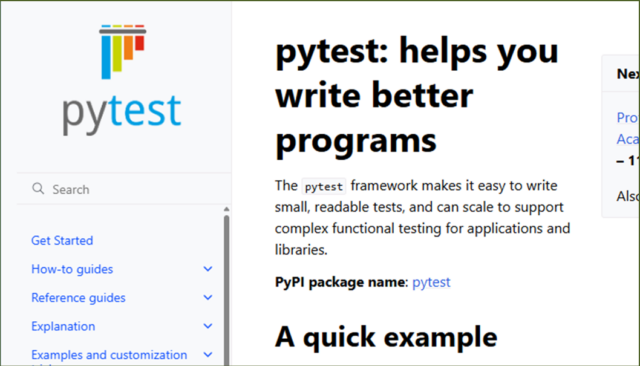
https://docs.pytest.org/en/stable/ より
pytestは、Pythonで書いたプログラムをテストするためのツールです。
Pythonには標準ライブラリとして"unittest"も用意されていますが、"pytest"はより少ない記述でテストを書き始められるため、初心者でも導入しやすい点が特徴です。
たとえば、pytestでは次のようにassertを使って、期待した結果になっているかを確認できます。
def test_sample():
    assert 1 + 1 == 2
この例では、1 + 1の結果が2であればテスト成功です。もし結果が期待値と違っていれば、pytestがテスト失敗として教えてくれます。
pytestを使うメリットは、主に次の3つです。
1つ目は、単純なテストを書くのが簡単なことです。
unittest のようにテストクラスを必ず作る必要はなく、まずはtest_から始まる関数を作るだけでテストを書けます。
2つ目は、テストコードが読みやすいことです。
assert actual == expectedのように書けるため、「実際の値が期待値と一致しているか」を直感的に理解できます。
3つ目は、CIと相性がよいことです。
GitLab CI、GitHub Actions、Jenkinsなどと組み合わせることで、スクリプトを変更したタイミングで自動的にテストを実行できます。これにより、「修正したら既存処理が壊れていた」という事故を早めに検知しやすくなります。
pytestを使ってみた
ここからは、実際にpytestを使ってみます。
今回は、次のような構成でハンズオン用のフォルダを作成します。
pytest-handson/
├─ pytest.ini
├─ src/
│  ├─ __init__.py
│  └─ output_number.py
└─ tests/
   └─ test_output_number.py
srcフォルダにはテスト対象のPythonスクリプトを配置します。
testsフォルダにはpytestで実行するテストスクリプトを配置します。
■事前確認
まず、任意の作業フォルダでハンズオン用のフォルダを作成します。※githubに公開していますので、こちらかcloneしてもらっても問題ないです。
mkdir pytest-handson/
cd pytest-handson/
mkdir src
mkdir tests
New-Item src\__init__.py -ItemType File
【実行結果】
PS C:\Users\user.WIN-NDPVG20193M\Documents\handson> cd .\pytest-handson\
PS C:\Users\user.WIN-NDPVG20193M\Documents\handson\pytest-handson> mkdir src

    ディレクトリ: C:\Users\user.WIN-NDPVG20193M\Documents\handson\pytest-handson

Mode                 LastWriteTime         Length Name
----                 -------------         ------ ----
d-----        2026/06/06     12:14                src

PS C:\Users\user.WIN-NDPVG20193M\Documents\handson\pytest-handson> mkdir tests

    ディレクトリ: C:\Users\user.WIN-NDPVG20193M\Documents\handson\pytest-handson

Mode                 LastWriteTime         Length Name
----                 -------------         ------ ----
d-----        2026/06/06     12:14                tests

PS C:\Users\user.WIN-NDPVG20193M\Documents\handson\pytest-handson> New-Item src\__init__.py -ItemType File

    ディレクトリ: C:\Users\user.WIN-NDPVG20193M\Documents\handson\pytest-handson\src

Mode                 LastWriteTime         Length Name
----                 -------------         ------ ----
-a----        2026/06/06     12:16              0 __init__.py
次に./python-handson/配下にpytest.iniファイルを作成します。pytest.iniに"pythonpath = ."を指定することで、pytest実行時にプロジェクト直下をimport探索対象に追加します。
[pytest]
pythonpath = .
testpaths = tests
つづいて、Pythonとpipのバージョンを確認します。
python --version
pip --version
【実行結果】
PS C:\Users\user.WIN-NDPVG20193M\Documents\handson\pytest-handson> python --version
Python 3.14.4
PS C:\Users\user.WIN-NDPVG20193M\Documents\handson\pytest-handson> pip --version
pip 26.0.1 from C:\Users\user.WIN-NDPVG20193M\AppData\Local\Programs\Python\Python314\Lib\site-packages\pip (python 3.14)
Pythonがインストールされていれば、Pythonとpipのバージョンが表示されます。
■仮想環境を作成する
次に、Pythonの仮想環境を作成します。
仮想環境を使うと、このハンズオン用にインストールしたパッケージを、PC全体のPython環境と分けて管理できます。運用スクリプトの保守でも、プロジェクトごとに依存パッケージを分けられるため便利です。
python -m venv .venv
作成した仮想環境を有効化します。
.\.venv\Scripts\Activate.ps1
PowerShellで実行ポリシーのエラーが出る場合は、次のコマンドを実行します。
Set-ExecutionPolicy -ExecutionPolicy RemoteSigned -Scope CurrentUser
PS C:\Users\user.WIN-NDPVG20193M\Documents\handson\pytest-handson> .\.venv\Scripts\Activate.ps1
.\.venv\Scripts\Activate.ps1 : このシステムではスクリプトの実行が無効になっているため、ファイル C:\Users\user.WIN-NDPVG20193M\Documents\handson\pytest-handson\.venv\Scripts\Activate.ps1 を読
み込むことができません。詳細については、「about_Execution_Policies」(https://go.microsoft.com/fwlink/?LinkID=135170) を参照してください。
発生場所 行:1 文字:1
+ .\.venv\Scripts\Activate.ps1
+ ~~~~~~~~~~~~~~~~~~~~~~~~~~~~
    + CategoryInfo          : セキュリティ エラー: (: ) []、PSSecurityException
    + FullyQualifiedErrorId : UnauthorizedAccess
PS C:\Users\user.WIN-NDPVG20193M\Documents\handson\pytest-handson> Set-ExecutionPolicy -ExecutionPolicy RemoteSigned -Scope CurrentUser
PS C:\Users\user.WIN-NDPVG20193M\Documents\handson\pytest-handson> .\.venv\Scripts\Activate.ps1
(.venv) PS C:\Users\user.WIN-NDPVG20193M\Documents\handson\pytest-handson>
仮想環境を有効化できると、プロンプトの先頭に (.venv) のような表示が付きます。
■pytestをインストールする
仮想環境を有効化した状態で、pipを更新します。
python -m pip install --upgrade pip
【実行結果】
(.venv) PS C:\Users\user.WIN-NDPVG20193M\Documents\handson\pytest-handson> python -m pip install --upgrade pip
Requirement already satisfied: pip in .\.venv\Lib\site-packages (26.0.1)
Collecting pip
  Downloading pip-26.1.2-py3-none-any.whl.metadata (4.6 kB)
Downloading pip-26.1.2-py3-none-any.whl (1.8 MB)
   ━━━━━━━━━━━━━━━━━━━━━━━━━━━━━━━━━━━━━━━━ 1.8/1.8 MB 5.9 MB/s  0:00:00
Installing collected packages: pip
  Attempting uninstall: pip
    Found existing installation: pip 26.0.1
    Uninstalling pip-26.0.1:
      Successfully uninstalled pip-26.0.1
Successfully installed pip-26.1.2
次に、pytestをインストールします。
pip install pytest
(.venv) PS C:\Users\user.WIN-NDPVG20193M\Documents\handson\pytest-handson> pip install pytest
Collecting pytest
  Downloading pytest-9.0.3-py3-none-any.whl.metadata (7.6 kB)
Collecting colorama>=0.4 (from pytest)
  Downloading colorama-0.4.6-py2.py3-none-any.whl.metadata (17 kB)
Collecting iniconfig>=1.0.1 (from pytest)
  Downloading iniconfig-2.3.0-py3-none-any.whl.metadata (2.5 kB)
Collecting packaging>=22 (from pytest)
  Downloading packaging-26.2-py3-none-any.whl.metadata (3.5 kB)
Collecting pluggy<2,>=1.5 (from pytest)
  Downloading pluggy-1.6.0-py3-none-any.whl.metadata (4.8 kB)
Collecting pygments>=2.7.2 (from pytest)
  Downloading pygments-2.20.0-py3-none-any.whl.metadata (2.5 kB)
Downloading pytest-9.0.3-py3-none-any.whl (375 kB)
Downloading pluggy-1.6.0-py3-none-any.whl (20 kB)
Downloading colorama-0.4.6-py2.py3-none-any.whl (25 kB)
Downloading iniconfig-2.3.0-py3-none-any.whl (7.5 kB)
Downloading packaging-26.2-py3-none-any.whl (100 kB)
Downloading pygments-2.20.0-py3-none-any.whl (1.2 MB)
   ━━━━━━━━━━━━━━━━━━━━━━━━━━━━━━━━━━━━━━━━ 1.2/1.2 MB 5.3 MB/s  0:00:00
Installing collected packages: pygments, pluggy, packaging, iniconfig, colorama, pytest
Successfully installed colorama-0.4.6 iniconfig-2.3.0 packaging-26.2 pluggy-1.6.0 pygments-2.20.0 pytest-9.0.3
インストールできたか確認します。
pytest --version
【実行結果】
(.venv) PS C:\Users\user.WIN-NDPVG20193M\Documents\handson\pytest-handson> pytest --version
pytest 9.0.3
pytestのバージョンが表示されれば準備完了です。
■pytest実行用のサンプルスクリプトを用意する
まず、src/output_number.py を作成します。
def get_number() -> int:
    """テスト対象として、固定の数値を返す関数。"""
    return 100

def main() -> None:
    """スクリプトとして実行されたときだけ、数値を画面に出力する。"""
    print(get_number())

if __name__ == "__main__":
    main()
このスクリプトは、get_number()関数で100を返します。
また、スクリプトとして直接実行した場合は、画面に100を出力します。
実行してみます。
python .\src\output_number.py
次のように表示されます。
(.venv) PS C:\Users\user.WIN-NDPVG20193M\Documents\handson\pytest-handson> python .\src\output_number.py
100
■テストスクリプトを用意する
次に、tests/test_output_number.pyを作成します。
from src.output_number import get_number

def test_get_number():
    assert get_number() == 100
pytestでは、test_から始まるファイル名や関数名がテストとして認識されます。
今回は、test_get_number()というテスト関数を作成し、get_number()の戻り値が100であることを確認しています。
■pytestを実行する
pytest-handsonフォルダで、次のコマンドを実行します。
pytest
テストに成功すると、次のような結果が表示されます。
(.venv) PS C:\Users\user.WIN-NDPVG20193M\Documents\handson\pytest-handson> pytest
===================================================================================== test session starts =====================================================================================
platform win32 -- Python 3.14.4, pytest-9.0.3, pluggy-1.6.0
rootdir: C:\Users\user.WIN-NDPVG20193M\Documents\handson\pytest-handson
configfile: pytest.ini
testpaths: tests
collected 1 item

tests\test_output_number.py .                                                                                                                                                            [100%]

====================================================================================== 1 passed in 0.03s ======================================================================================
(.venv) PS C:\Users\user.WIN-NDPVG20193M\Documents\handson\pytest-handson>
1 passedと表示されていれば、1件のテストが成功したという意味です。
■-vオプションで詳しく表示する
pytestは、-vオプションを付けると、どのテストが実行されたかをより詳しく表示できます。
pytest -v
実行すると、次のようにテスト関数名と結果が表示されます。
(.venv) PS C:\Users\user.WIN-NDPVG20193M\Documents\handson\pytest-handson> pytest -v
===================================================================================== test session starts =====================================================================================
platform win32 -- Python 3.14.4, pytest-9.0.3, pluggy-1.6.0 -- C:\Users\user.WIN-NDPVG20193M\Documents\handson\pytest-handson\.venv\Scripts\python.exe
cachedir: .pytest_cache
rootdir: C:\Users\user.WIN-NDPVG20193M\Documents\handson\pytest-handson
configfile: pytest.ini
testpaths: tests
collected 1 item

tests/test_output_number.py::test_get_number PASSED                                                                                                                                      [100%]

====================================================================================== 1 passed in 0.03s ======================================================================================
(.venv) PS C:\Users\user.WIN-NDPVG20193M\Documents\handson\pytest-handson>
テストが増えてきた場合は、-vを付けると、どのテストが成功・失敗したのかを確認しやすくなります。
■テスト結果の見方
pytestの実行結果では、主に次のようなステータスが表示されます。
| ステータス | 意味 |
|---|---|
| PASSED | テスト成功。テストが正常に実行されたことを意味します。 |
| FAILED | テスト失敗。assertの結果が期待通りではなかった場合など。 |
| SKIPPED | このテストがスキップされたことを意味します。 |
| XFAIL | 失敗することを想定していたテストが、想定通り失敗したことを意味します。 |
| XPASS | 失敗することを想定していたテストが、予想に反して成功したを意味します。 |
| ERROR | テスト実行前の準備やimportなどでエラーになったことを意味します。 |
初心者のうちは、まずPASSED、FAILED、ERRORの3つを理解しておけば十分です。
FAILEDは、テスト自体は実行されたものの、期待した結果と実際の結果が違っていた状態です。
一方でERRORは、テスト対象のファイルをimportできない、構文エラーがあるなど、テストの中身に入る前に問題が起きている状態です。
■あえてテストを失敗させてみる
テストが失敗したときの見え方も確認しておきます。
tests/test_output_number.py を次のように変更します。
from src.output_number import get_number

def test_get_number():
    assert get_number() == 101
もう一度pytestを実行します。
pytest
この場合、get_number()は100を返すため、期待値101と一致せず、テストは失敗します。
【実行結果】
(.venv) PS C:\Users\user.WIN-NDPVG20193M\Documents\handson\pytest-handson> pytest
===================================================================================== test session starts =====================================================================================
platform win32 -- Python 3.14.4, pytest-9.0.3, pluggy-1.6.0
rootdir: C:\Users\user.WIN-NDPVG20193M\Documents\handson\pytest-handson
configfile: pytest.ini
testpaths: tests
collected 1 item

tests\test_output_number.py F                                                                                                                                                            [100%]

========================================================================================== FAILURES ===========================================================================================
_______________________________________________________________________________________ test_get_number _______________________________________________________________________________________

    def test_get_number():
>       assert get_number() == 101
E       assert 100 == 101
E        +  where 100 = get_number()

tests\test_output_number.py:5: AssertionError
=================================================================================== short test summary info ===================================================================================
FAILED tests/test_output_number.py::test_get_number - assert 100 == 101
====================================================================================== 1 failed in 0.16s ======================================================================================
(.venv) PS C:\Users\user.WIN-NDPVG20193M\Documents\handson\pytest-handson>
pytestは、どの行のassertが失敗したのか、実際の値と期待値がどう違っていたのかを表示してくれます。
この情報を見ることで、修正すべき箇所を調べやすくなりますね。これがpytestの良いところでもあります。
確認が終わったら、期待値を100に戻しておきます。
from src.output_number import get_number

def test_get_number():
    assert get_number() == 100
運用スクリプトでpytestを使うときの考え方
実際の運用スクリプトでは、AWS、ファイル、ログ、日付、外部コマンドなどを扱うことが多いです。
いきなりスクリプト全体をテストしようとすると難しく感じるかもしれません。
そのため、最初は次のように"テストしやすい小さな処理"から切り出すのがおすすめです。
- 文字列を整形する処理
- 日付を変換する処理
- 設定ファイルの値をチェックする処理
- ログメッセージを生成する処理
- 戻り値や終了コードを判定する処理
たとえば、運用スクリプトの中に、「戻り値が200なら正常、202なら警告、500なら異常」のような判定がある場合、その判定ロジックだけを関数に切り出せば、pytestでテストしやすくなります。
ポイントは、本番環境で実行しないと確認できない処理と、ローカルPCでも確認できる処理を分けることです。
まずはローカルPCで確認できる処理からpytestを導入すると、現場にも受け入れられやすくなります。
まとめ
今回は、pytestを使ってPythonスクリプトの単体テストを実行する方法を紹介しました。
pytestを導入すると、次のようなメリットがあります。
- スクリプト修正後に、既存処理が壊れていないか確認しやすくなる
- 手作業の確認を減らせる
- GitLab CIやGitHub Actionsなどと組み合わせて、テストを自動化しやすくなる
- 本番環境で直接修正する運用から、バージョン管理とテストを前提にした運用へ近づける
運用保守の現場では、いきなり完璧なテスト環境を作る必要はありません。
まずは、影響の小さいスクリプトや、判定ロジックのような小さな関数からpytestを試してみるのがおすすめです。
小さなテストを積み重ねることで、スクリプトを安心して修正できる状態に近づけていきましょう。
参考サイトリンク:pytest documentation、Python venv documentation、テスト駆動Python 第2版 (著:Brian Okken, 出版社:翔泳社)
↓ほかの協栄情報メンバーも運用自動化に関する記事を公開しています。ぜひ参考にしてみてください。
■Amazon EC2を利用して、GitLabサーバを構築してみた【AWS】(齊藤弘樹)
■AWS運用エンジニアがS3 Filesを触ってみた(齊藤弘樹)